Mission Control
See your whole agent team at work, chat with any of them, and stay in charge of what they do. A small app that runs on your own computer.
Version 0.2.0. Free to download. Mac builds are notarized by Apple. The Windows installer is not code-signed yet, so Windows may show a SmartScreen notice: choose More info, then Run anyway.
Needs Claude (Claude Code) on the same computer for chat. Also included with the AI Agent Team.
Watch your whole team work, and talk to any of them
Mission Control is a small app that runs on your own computer. See every agent at a glance, chat with the team from one window, review changes before they are committed, and schedule recurring jobs. See what your agents create in a side pane, and approve folders and deletes with one click. Included with the Agent Team.
Click around the real app with a sample team: open the Brain, chat with the Master Agent, review a commit. It runs in your browser with made-up data. Nothing is saved or sent.
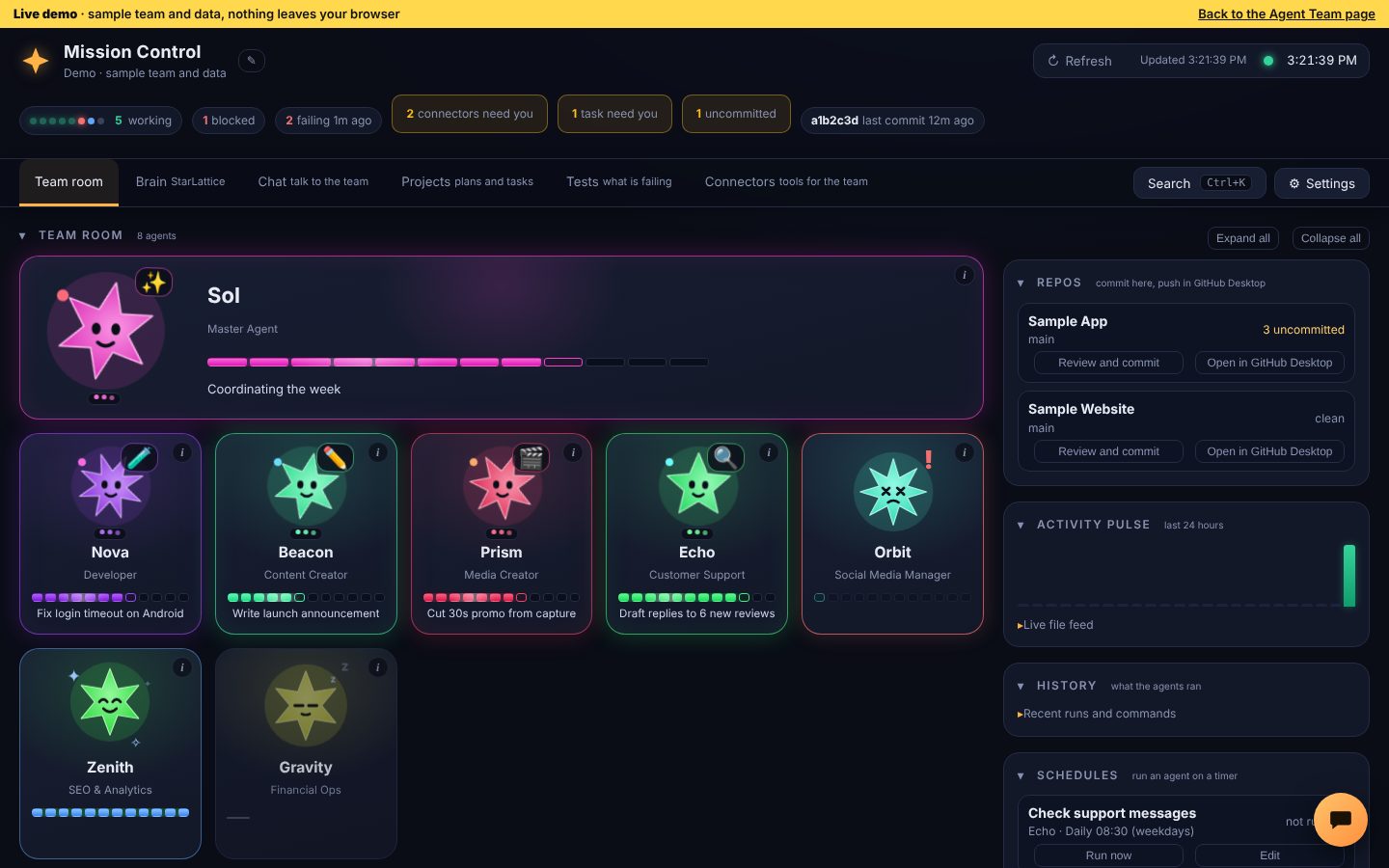
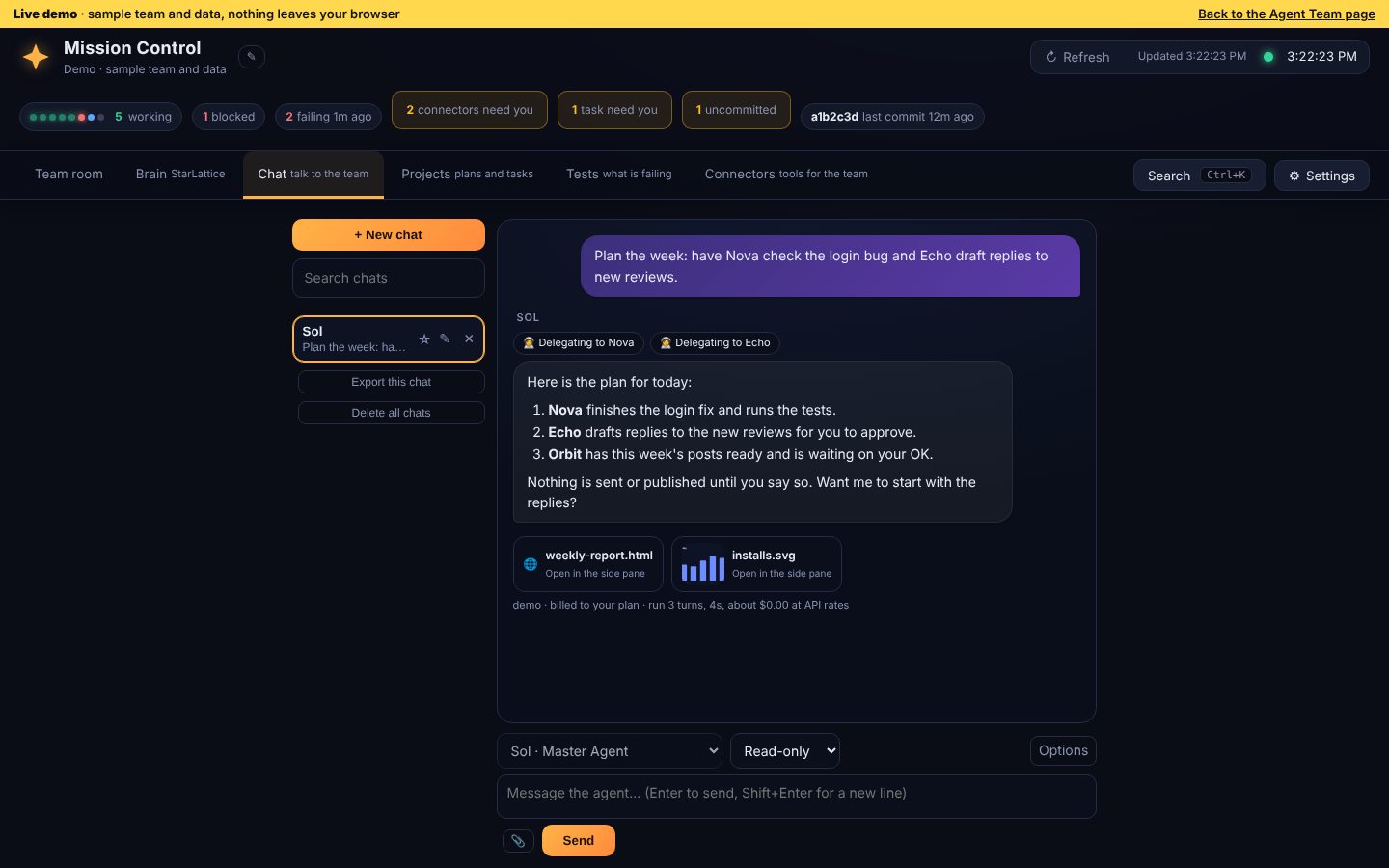
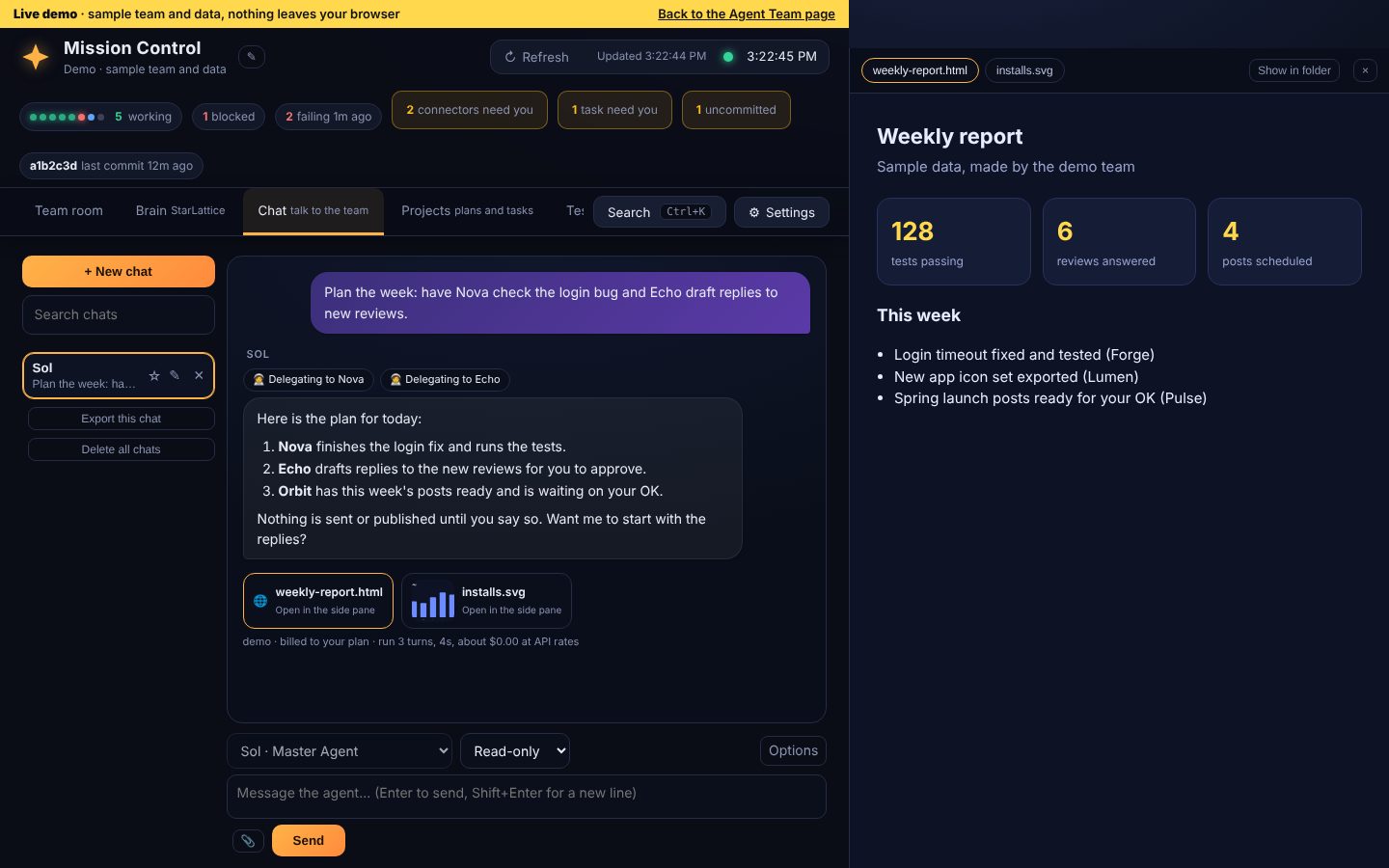
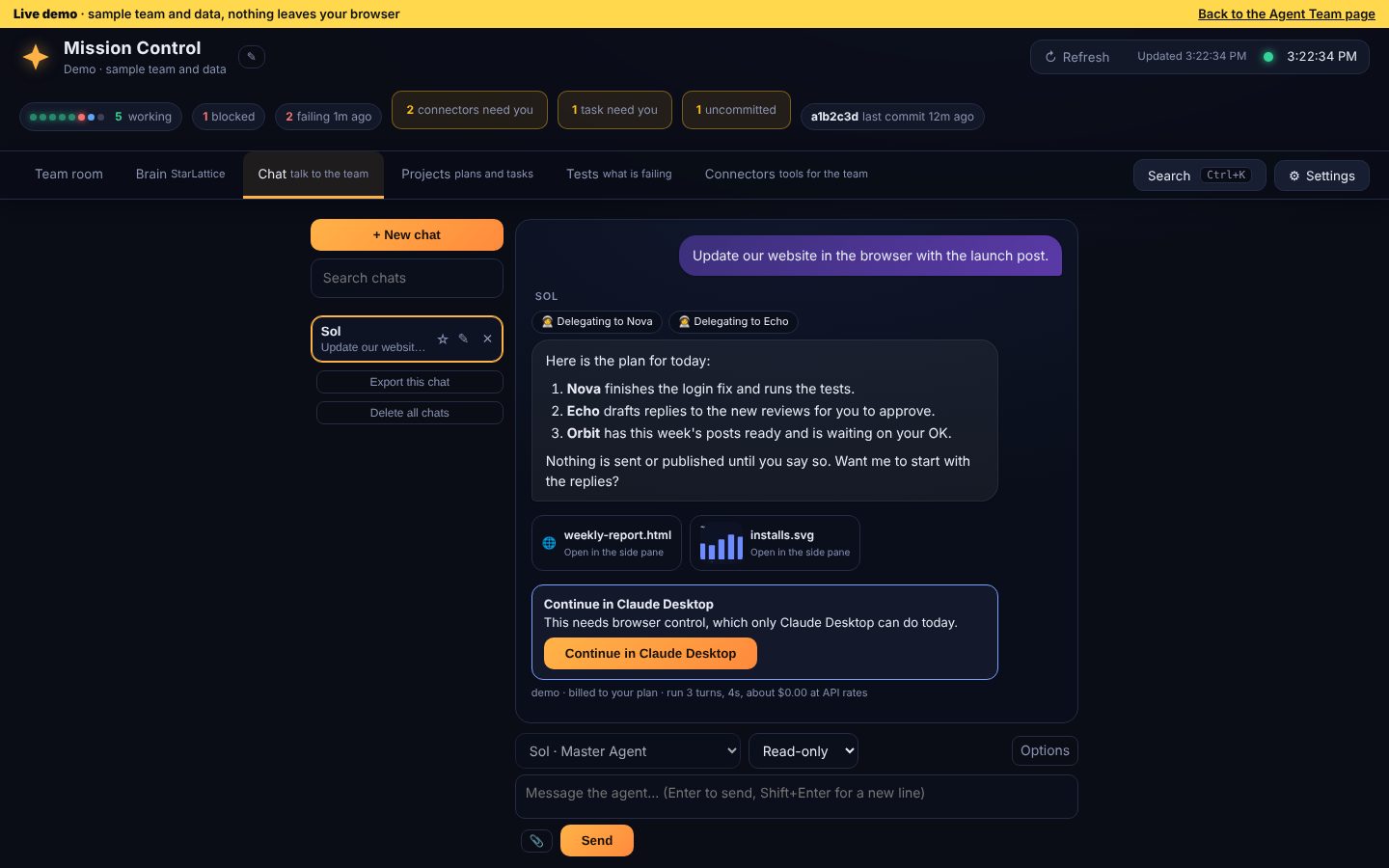
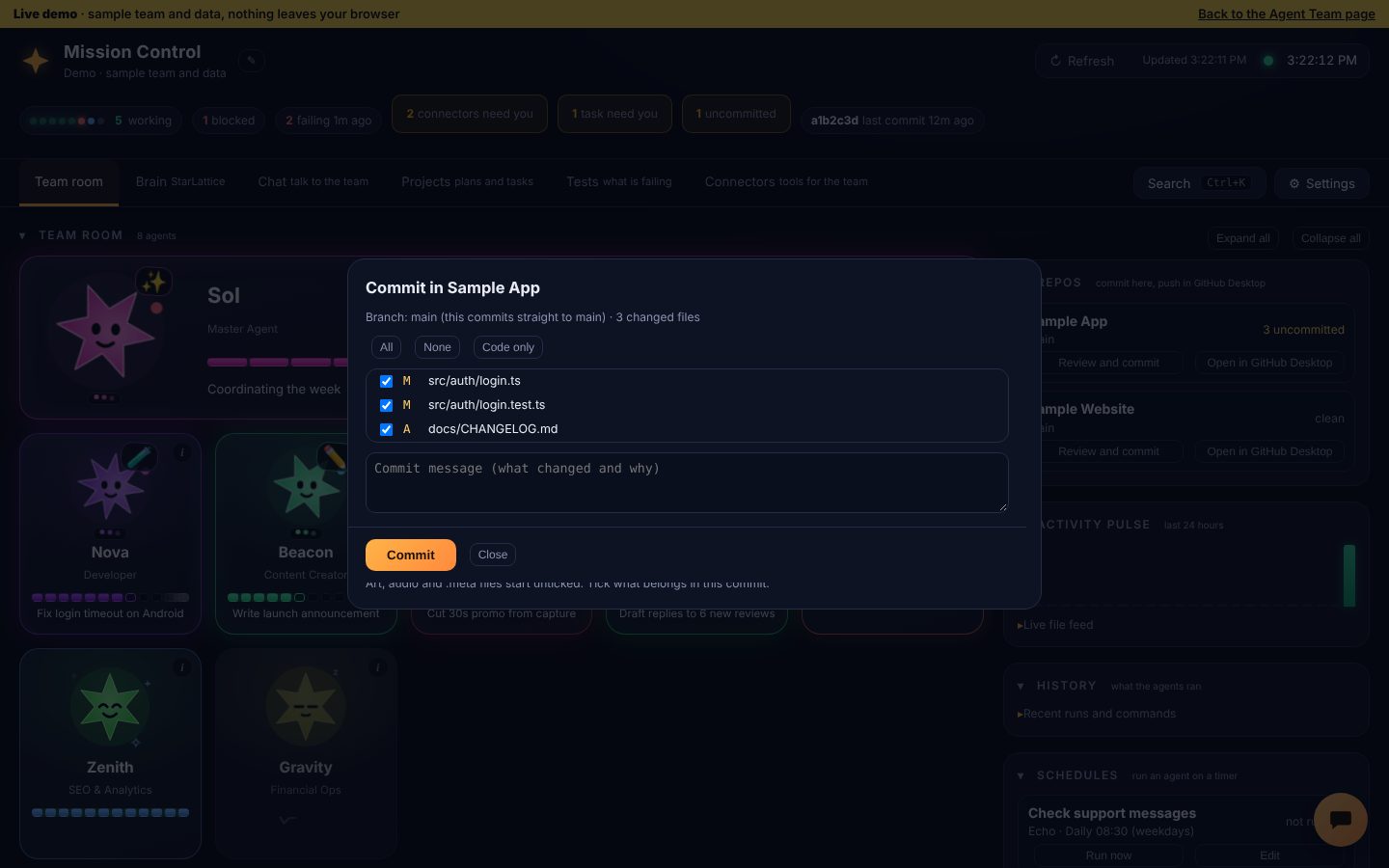
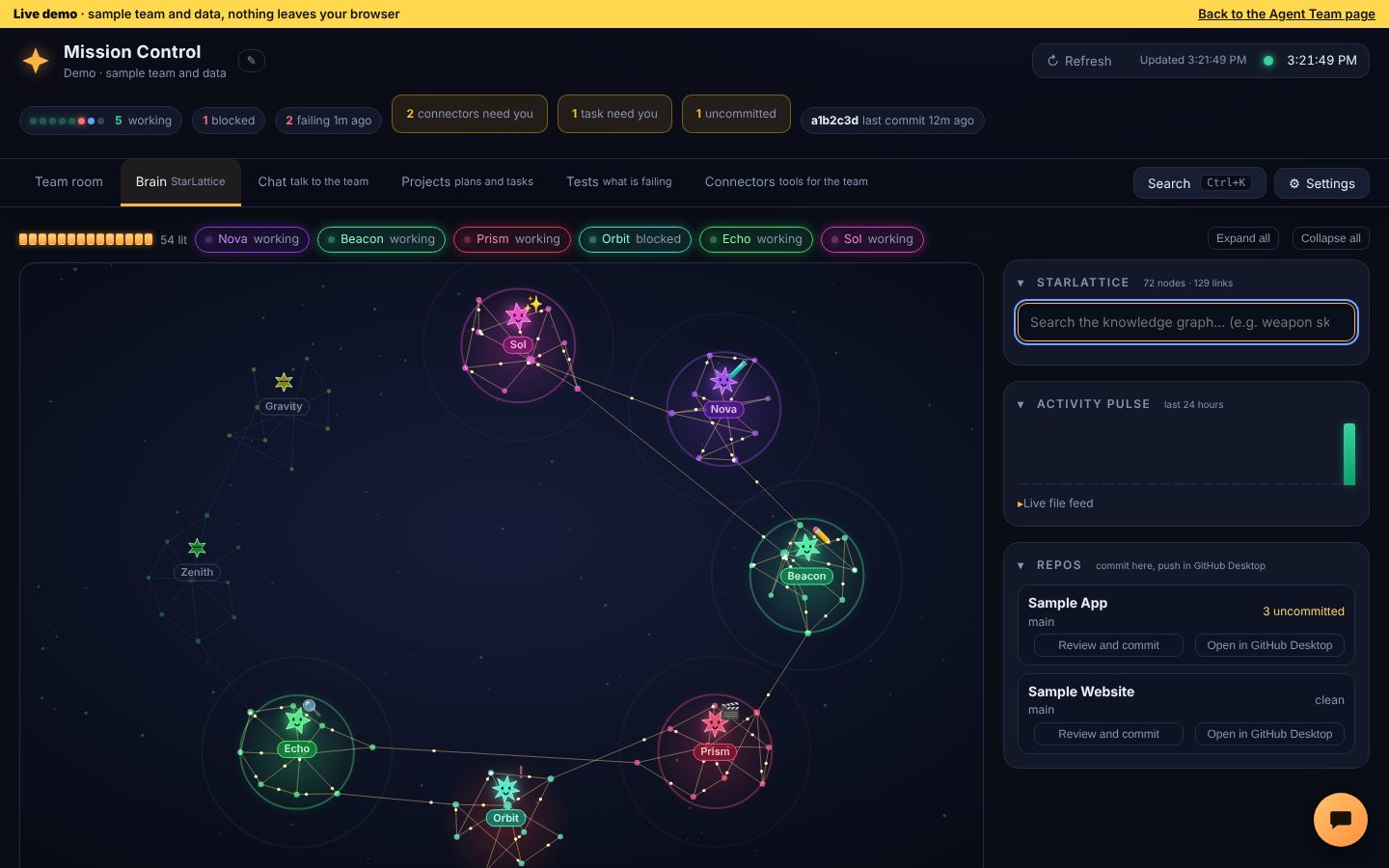
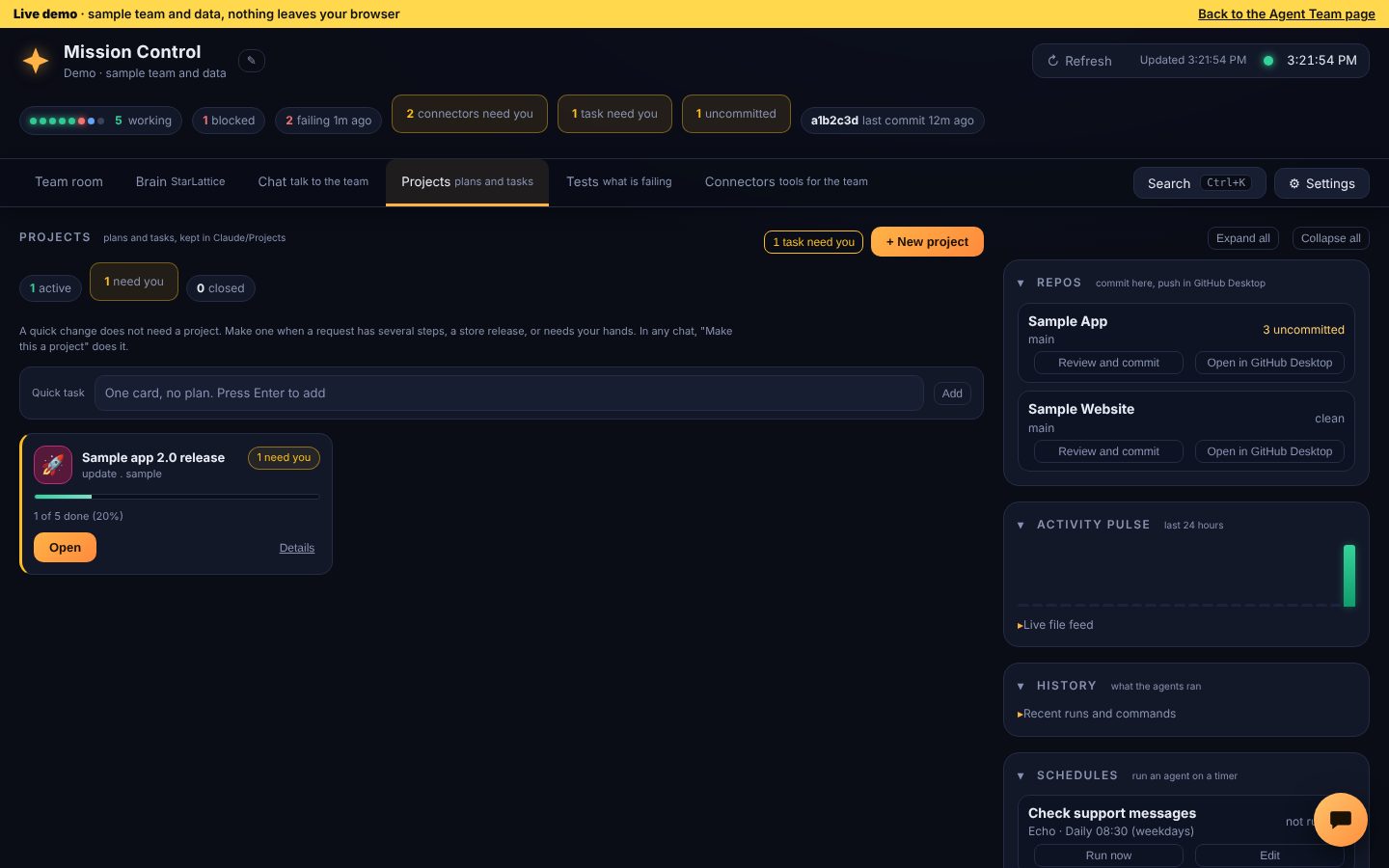
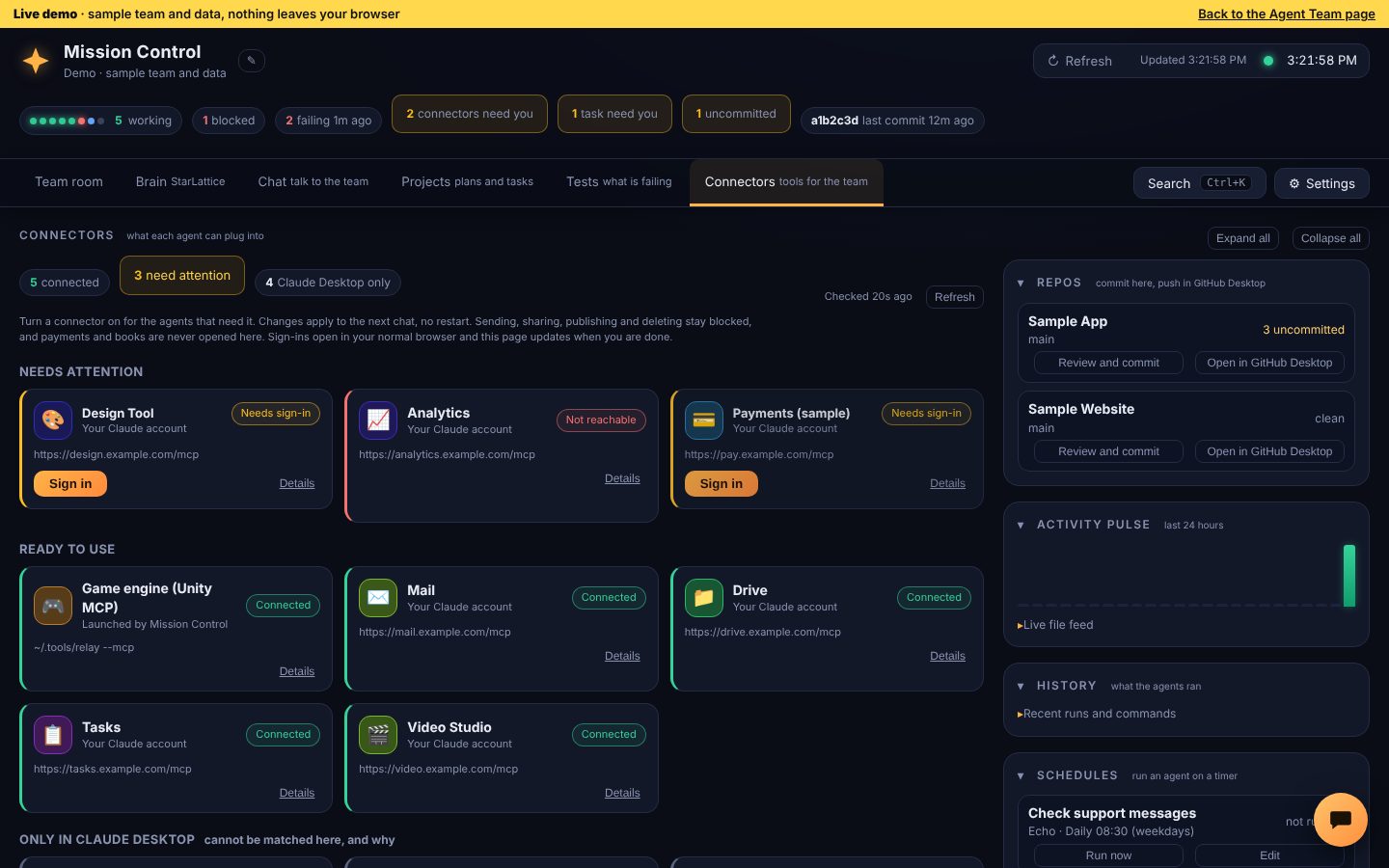
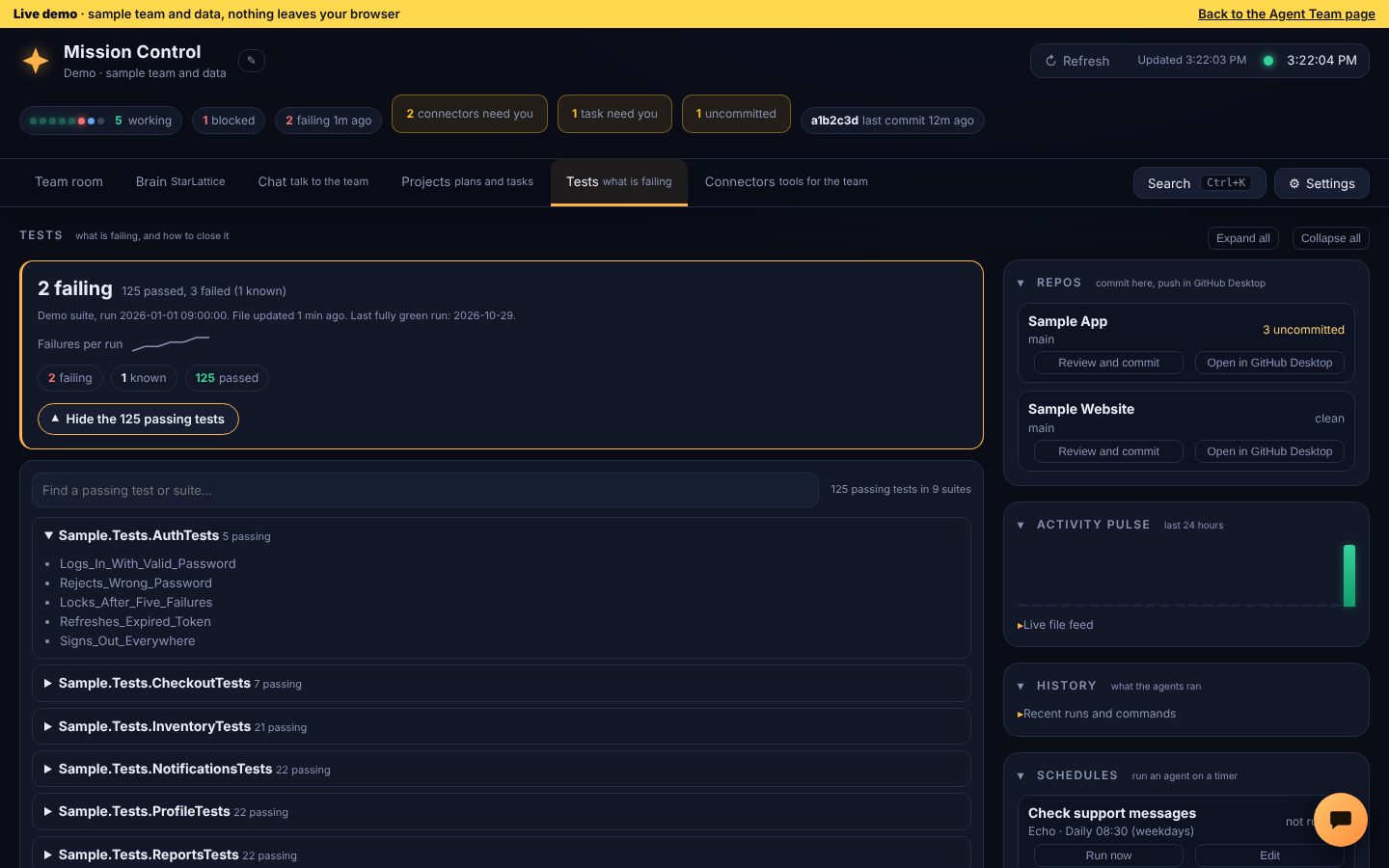
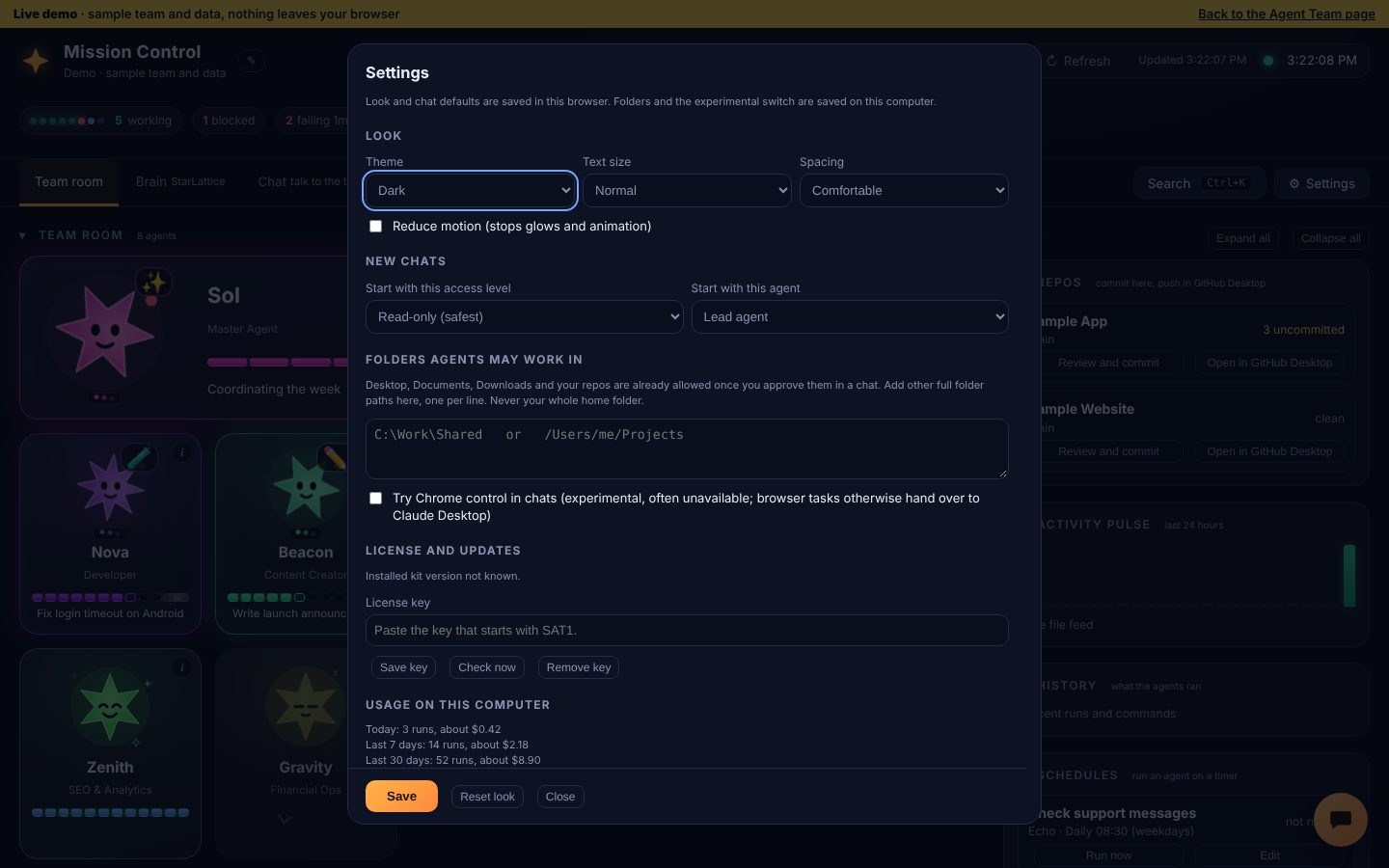
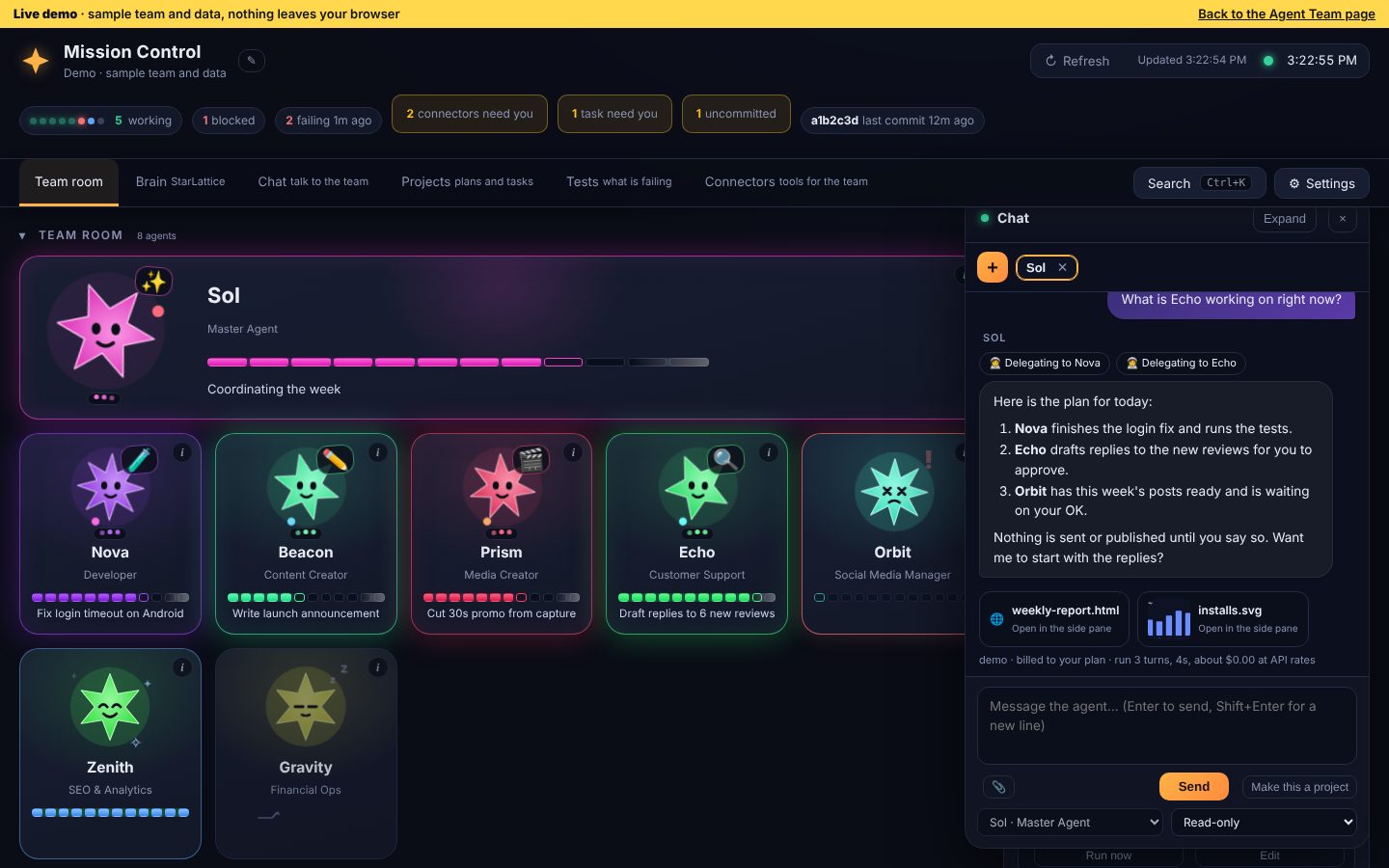
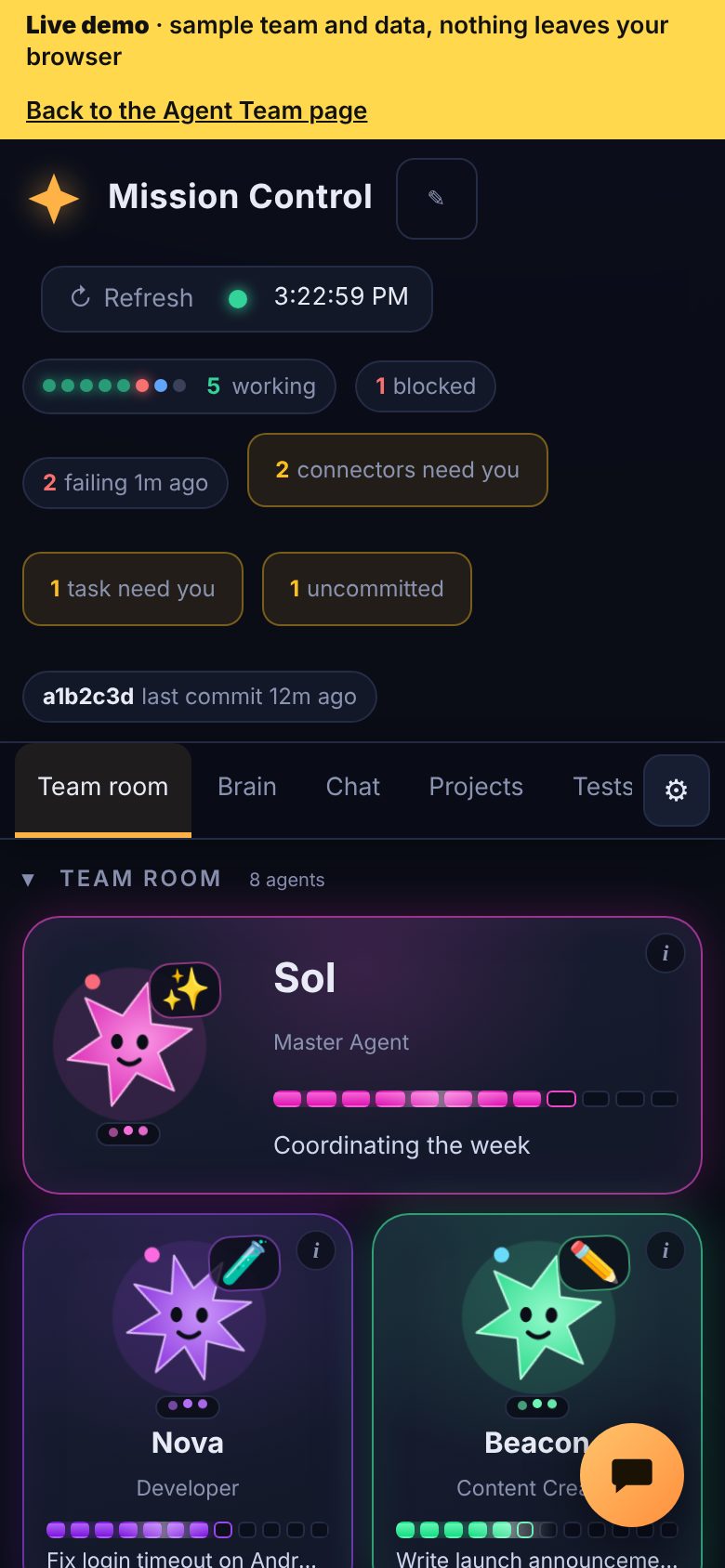
Fits any window
Mission Control opens in its own clean app window (no browser tabs or address bar), closes completely when you close it, and adapts from a wide desktop to a narrow window. Want to try it before connecting your own agents? Start it in demo mode and explore a sample team with nothing real touched.
A live team room
A card for every agent with what it is working on, how far along it is, and when it needs you.
Chat with any agent
Talk to your Master Agent or any specialist, several chats at once. Attach images and files. Every chat is saved.
Safe by default
Read-only to start. Anything an agent is not allowed to do shows an Approve button with the exact action. Nothing is sent, published or paid from here, and every delete needs your approval of the exact file.
You commit, you push
Tick the files, write the message, commit. Mission Control never pushes, so you stay in control of what goes live.
Scheduled work
Have an agent check support messages every weekday morning or draft your posts every Monday.
Chat bubble
Keep watching the team room and reply to an agent from a floating chat, without switching tabs.
Side pane for what agents make
Pages, images, PDFs, video and text open beside the chat the moment an agent creates them, with a Show in folder button.
Folder and delete approvals
An agent can ask to work in your Desktop, Documents or Downloads. You approve once. A delete shows a red card and runs only after you approve that exact path.
Tells you when to switch
If a chat needs computer or browser control, Mission Control says so and one button hands it to Claude Desktop.
Settings and usage
Light, dark or match your computer, bigger text, compact spacing, and extra folders agents may use. See what your agent runs have cost on this computer, and clear the history in one click.
Connectors page
See every tool your agents can use, such as Unity, and switch each one on or off per agent. Sign in opens a browser window and returns by itself. Anything that moves money stays blocked.
Local Memory
A memory folder your agents share. They read it when a chat starts and write down new facts, so nothing you tell one agent is lost to the next.
Tests that close themselves
Click a red chip and land on the failing test. Send it to an agent to fix, mark known problems with a reason, and watch the history until it flips to fixed.
Projects and tracker
A board for each update or project with the next step, what needs you and linked tests. Chats continue where they left off instead of starting over.
A desktop icon from day one
First-time setup puts a Mission Control icon on your desktop (a Mac app or a Windows shortcut), so you can close Claude Desktop and keep working.
Command palette and shortcuts
Press Ctrl+K (Cmd+K on Mac) to jump anywhere, start a chat with any agent or change the look. Hide sections you do not need, and the side tray shows only what fits the page you are on.
Runs on your computer only, with launchers for Windows and Mac. Needs Node.js and the Claude command (Claude Code). Nothing is uploaded anywhere.
A Setup screen points it at your own agents and projects, so you can use it at home and at work with separate settings on each computer.
BUILT TO BE SAFE
Local only
Mission Control runs on your own computer and talks only to itself. There is no account, no tracking and nothing is uploaded.
Your own Claude
Chats use the Claude you already use on that computer, so your work stays under your own plan and rules.
You approve, you commit
Anything an agent may not do shows an Approve button with the exact action. Mission Control never pushes, publishes or pays for anything.
Deletes need your OK
A delete shows a red card and runs only after you approve that exact file.
FREE AND PRO
The team room and everything free below stay free forever. Pro is a one-time purchase that unlocks the rest.
Free, always
- The live team room: every agent and what it is working on
- The Projects tracker for your linked project folder
- The Tests page and the Health check
- Settings, light and dark, and demo mode with a sample team
- Status reports from every agent, always
Pro
- Chat with any agent, with every chat saved
- Ask an agent from your own tools
- Connectors: choose which tools each agent may use
- The Brain: a searchable map of how your files link together
- Background schedules, even with the window closed
- More project folders, and the usage view
Agent Team buyers get Mission Control with everything unlocked.
Launch price $10. One-time purchase.
Buy Pro